8-Bit Tower Defense Combat Mechanics, Controls and Placement
Place units where they can reach the road, choose which enemies they target and spend battle cash on useful upgrades. These controls also let you automate waves and abilities, adjust battle speed and leave a match with cleared-wave rewards.
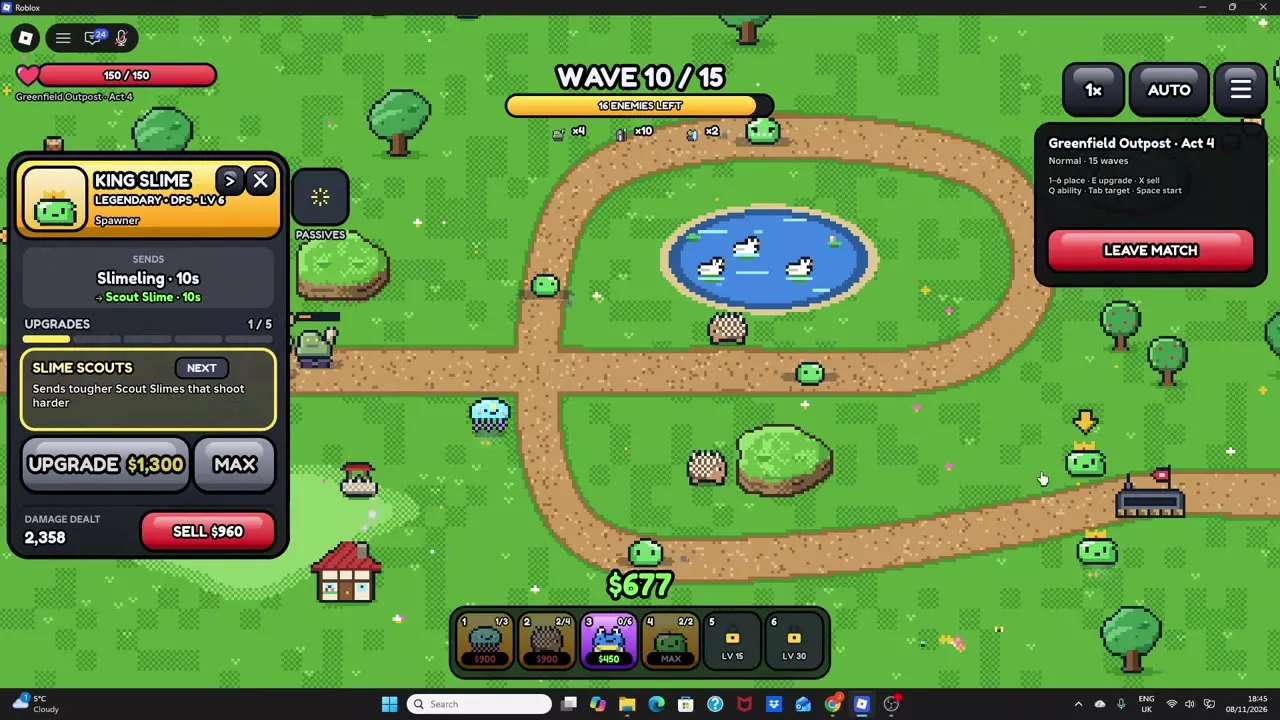
Select a squad card or press 1–6, move its range preview onto valid ground and click to deploy. Select a deployed unit to upgrade with E, sell with X, use an active ability with Q or change targeting with Tab. START or Space begins combat; SKIP and AUTO shorten wave waits. Free 1.5x speed is available, and leaving through LEAVE MATCH keeps rewards from cleared waves.
Place Units on Valid Ground
Equip the unit in your squad before entering battle, then make sure you have enough battle cash for its displayed deployment cost.
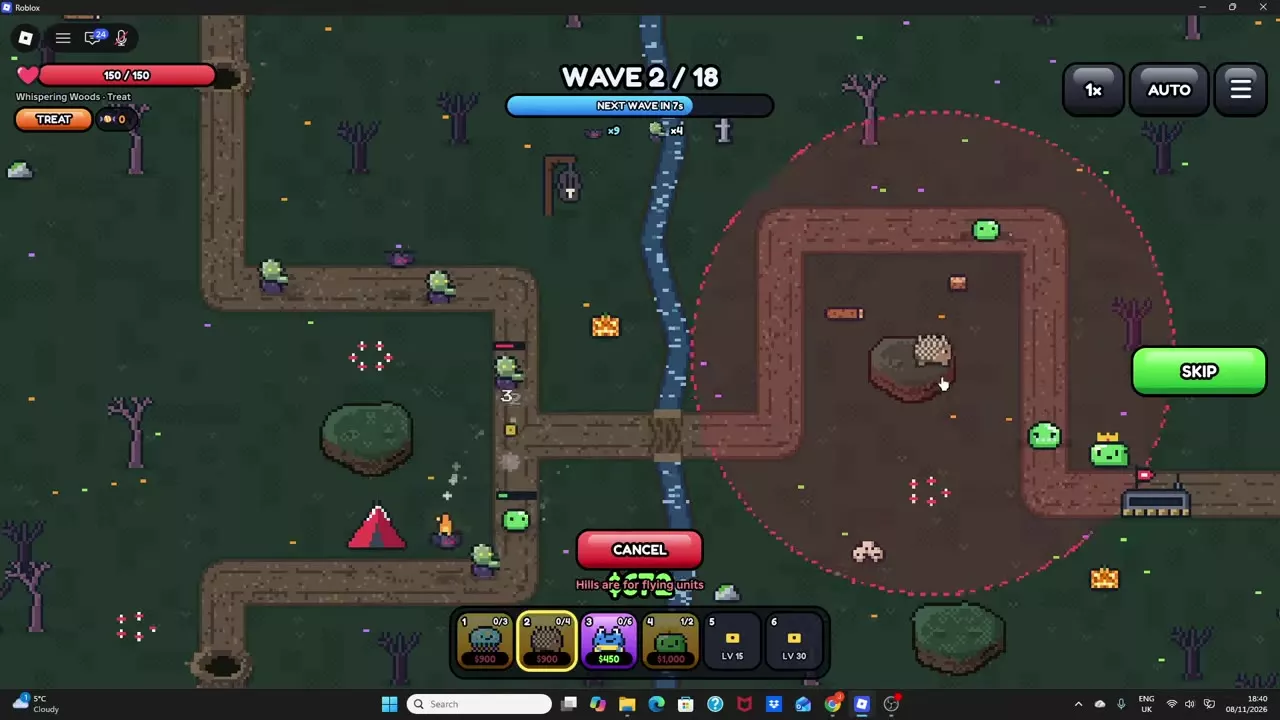
- Select its card in the bottom hotbar, or press the number for its squad slot.
- Move the preview across the map. Use the circular range indicator to check whether the unit can reach the enemy route.
- Adjust the position until it is valid, then click the ground to deploy. Placement spends cash and increases that unit's deployed count.
- Right-click, press Esc or select CANCEL to leave placement mode.
Fix a rejected placement
- Too close to the path: Move farther from the road.
- Too close to another unit: Leave more space around the existing unit.
- Can't build on water: Move that placement onto valid ground.
- Out of bounds: Move back inside the build area.
- Something is in the way: Move away from rocks or other obstructions.
- Hills are for flying units: Choose a unit eligible for hill placement, or use valid ground beside the hill. HITS AIR describes the ability to attack flying enemies; it does not establish hill-placement eligibility.
- Not enough cash: Earn more battle cash or select a cheaper deployment.
Some farmland patches in Pumpkin Patch accept units. Move the preview around nearby obstacles to find a valid spot.
Check the deployment limit
The hotbar shows deployed copies against that unit's limit and displays MAX when full. Quill Porcupine allows four copies, while King Slime allows two. When a type reaches its limit, upgrade its existing copies or deploy another available unit type.
Choose Targets and Cover More Road
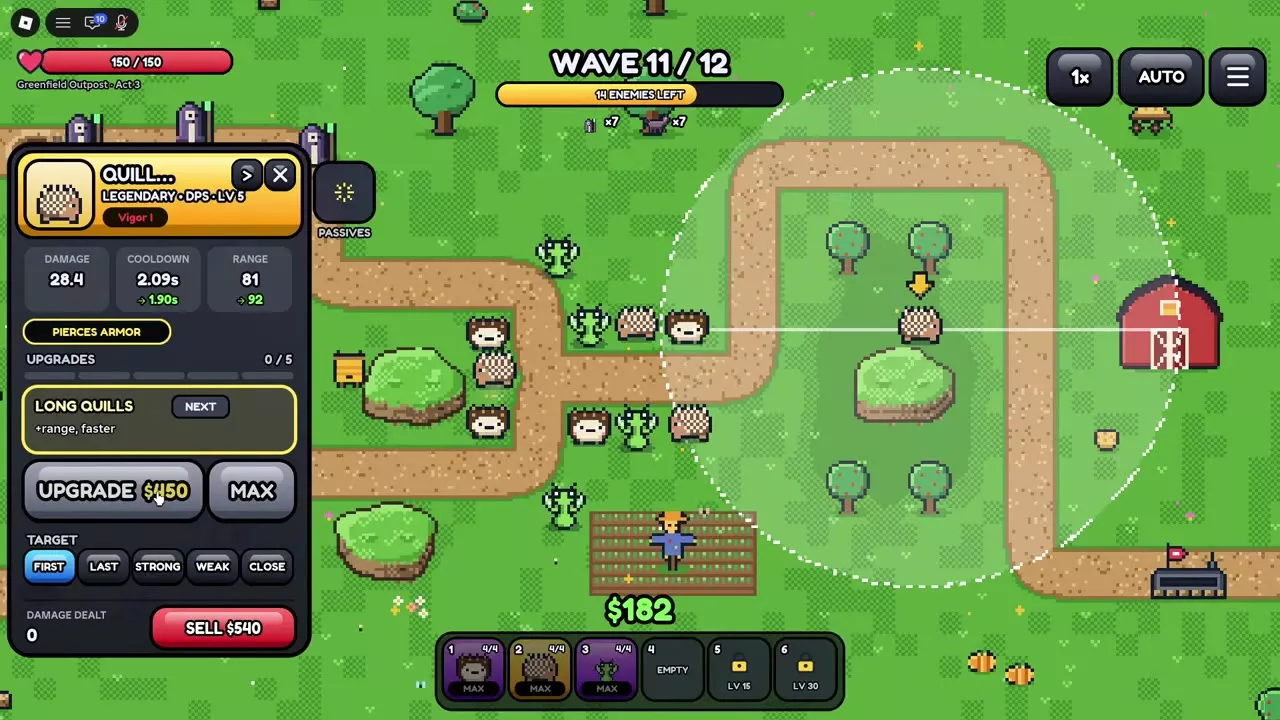
Click a deployed unit to open its combat panel and show its attack range. In TARGET, select FIRST, LAST, STRONG, WEAK or CLOSE, or press Tab to change the target setting. The selected option is highlighted in the panel.
Choose positions by how much useful road falls inside the range circle:
- Bends: Place a unit where its circle reaches around the curve, giving it more road to attack along.
- Junctions and nearby road sections: Look for positions that cover several sections from one deployment.
- Short-range units: Place close enough to reach the road while staying outside the path's restricted placement area.
If enemies escape one unit's coverage, another deployment farther along the route can add a second attack zone. For the unit roles that fill a defense gap, use the team-building guide. For flying, armored, shielded and other enemy mechanics, see enemies and counters.
Upgrade, Add Another Unit or Sell
Select a deployed copy and compare its current damage, cooldown and range with the next upgrade's effects and cash price. Each copy upgrades independently: improving one Quill Porcupine does not improve the others. The panel's 0/5 or 1/5 progress tracks that copy's in-battle upgrades, separately from its unit level.
| Choice | Main benefit |
|---|---|
| Upgrade a copy | Stronger attacks or new effects |
| Deploy another unit | Another coverage zone |
| Sell a copy | Displayed cash refund |
Favor an upgrade when its next effect solves an immediate problem, such as reaching more road or unlocking attacks against flying enemies. Favor another deployment when you need coverage in a different position and have an available placement slot.
For example, a Level 7 Quill Porcupine with Vigor I can buy Long Quills for $450 battle cash, reducing its attack interval from 2.09 to 1.90 seconds and increasing range from 81 to 92. This improves an existing position's reach and attack frequency. In a Level 1 Spine Hedgehog setup at 0/3, the $1,150 Longer Spines upgrade adds damage, range and flying-target coverage—making the upgrade useful when the defense needs an answer to airborne enemies.
Use UPGRADE or E to buy the next upgrade. Use MAX to buy as many consecutive upgrades as your current cash can afford. If Not enough cash appears, earn more cash from defeated enemies and try again. Reopen the particular copy's panel to check its progress.
Sell a deployed copy
Select the copy, read its current SELL amount, then click SELL or press X. Only that selected copy leaves the battlefield, and you receive the displayed battle cash. In the Portuguese interface, the button is VENDER.
Selling can recover cash from a position that no longer contributes useful coverage. Use the amount shown on the selected copy when deciding whether the replacement is affordable. See battle cash and farm unit choices for broader spending and economy decisions.
Use Active Abilities and Inspect Passives
Deployed units perform normal attacks automatically against enemies within range. For an active ability, select the unit and press Q after unlocking the relevant ability. Open Passives on its battle panel to read its passive effects.
Turn on Auto Abilities when you want active abilities to fire automatically. Use manual activation when you want to choose the moment yourself.
Check upgrade requirements before relying on a move or effect. Glacier Penguin's Belly Slide unlocks at 3/5 in-battle upgrades; buying it from 2/5 costs $2,000 battle cash. It slides along a road section, hitting enemies on that section, with a description listing 22 damage and a 1.5-second freeze. The NEW MOVE label alone does not mean a move requires manual Q activation.
Control Waves and Battle Speed
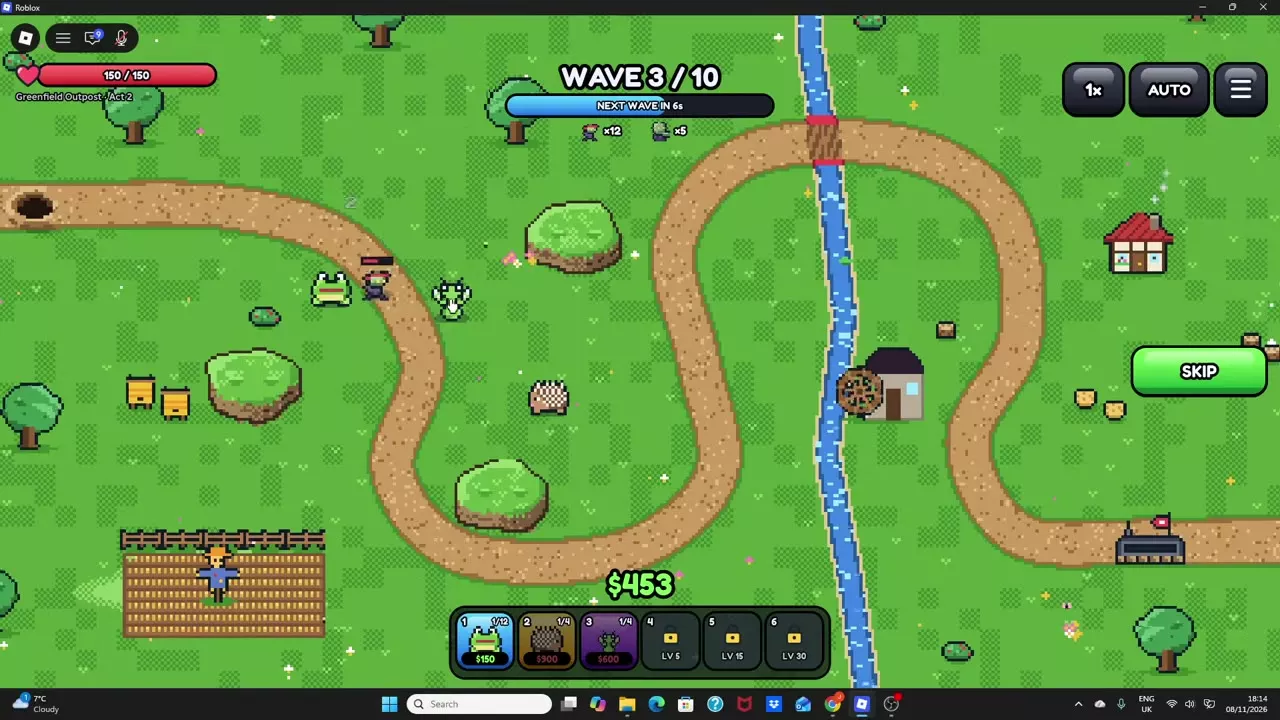
Deploy your opening defense, then press START or Space to send the first wave. The top-center display tracks the current wave, total waves, remaining enemies and NEXT WAVE countdown.
- SKIP: Advance past the wait between waves.
- AUTO: Automatically advance waves by skipping that waiting period.
In Portuguese, PULAR is SKIP and AUTOMÁTICO is AUTO. Keep the waiting period when you want time to inspect units or plan purchases; enable AUTO when your defense is ready to continue without repeated wave-start input.
Change battle speed
Use the speed control near AUTO at the top right and check its displayed multiplier. 1.5x is free, and your selected battle speed carries between matches. The free 1.5x rollout applied to new servers and private servers.
If the party leader owns x2 Speed, the pass can run the whole match at double speed. If its purchase prompt opens, close it to return to combat; free 1.5x remains available. See game pass prices and purchase choices for the full buying comparison.
Use the Keyboard Shortcuts
| Key | Action |
|---|---|
| 1–6 | Place corresponding squad slot |
| E | Upgrade selected unit |
| X | Sell selected unit |
| Q | Use selected unit's active ability |
| Tab | Change selected unit's targeting |
| Space | Start |
Select a deployed unit before using its unit-specific shortcuts. Open the top-right battle menu to view the shortcut list and stage information. Controller support is also available.
Leave a Match and Keep Cleared-Wave Rewards
Leaving a match keeps rewards from waves you have cleared.
- Open the top-right battle menu.
- Select LEAVE MATCH.
- Choose LEAVE to exit, or CANCEL to stay in combat.
- Review the RETREAT results. Use HOME to return to the lobby or PLAY AGAIN to retry.
Leaving before clearing any waves can give zero rewards: a Greenfield Outpost Act 3, Normal retreat at wave 0 returned zero in all three displayed reward amounts.
A partial run can still earn resources. For example, retreating during wave 3 of Pumpkin Patch on Trick awarded 13 Candy, while that stage listed 200 Candy for a full clear. The partial payout is a reward for that run's progress, not a fixed Candy amount per wave.
Defeat can also award resources, and squad units earn battle XP whether you win or lose. A Whispering Woods, Treat loss during wave 3 after clearing two waves awarded 7 Gold, 1 Candy and 20 XP to each squad unit. Lantern Jellyfish gained a level from that XP. Review the result screen before choosing HOME or PLAY AGAIN; in Portuguese, these buttons are CASA and JOGAR NOVAMENTE.
FAQ
Does HITS AIR mean a unit can be placed on hills?
No. HITS AIR describes which enemies the unit can attack. Hill placement has a separate eligibility rule. If the preview says Hills are for flying units, choose an eligible unit or move onto valid ground beside the hill. See placement rules.
Does leveling a unit unlock more squad slots?
Squad slots depend on account level, not an individual unit's level. Account levels 5, 15 and 30 unlock the fourth, fifth and sixth slots. Unit XP levels individual units, while Tide Pass XP advances the pass. See player progression.
Is a ten-pull cheaper than ten single summons?
At base prices, Featured and Standard cost 50 Gems per single or 500 per ten-pull, so the currency cost is equal. A ten-pull guarantees at least one Epic or higher. VIP reduces both prices by 20%, to 40 Gems per single or 400 per ten-pull. See summoning prices and guarantees.