8-Bit Tower Defense Unit Storage, Locking and Auto-Sell
Keep useful summons and make room for your collection with the storage and protection controls in 8-Bit Tower Defense.
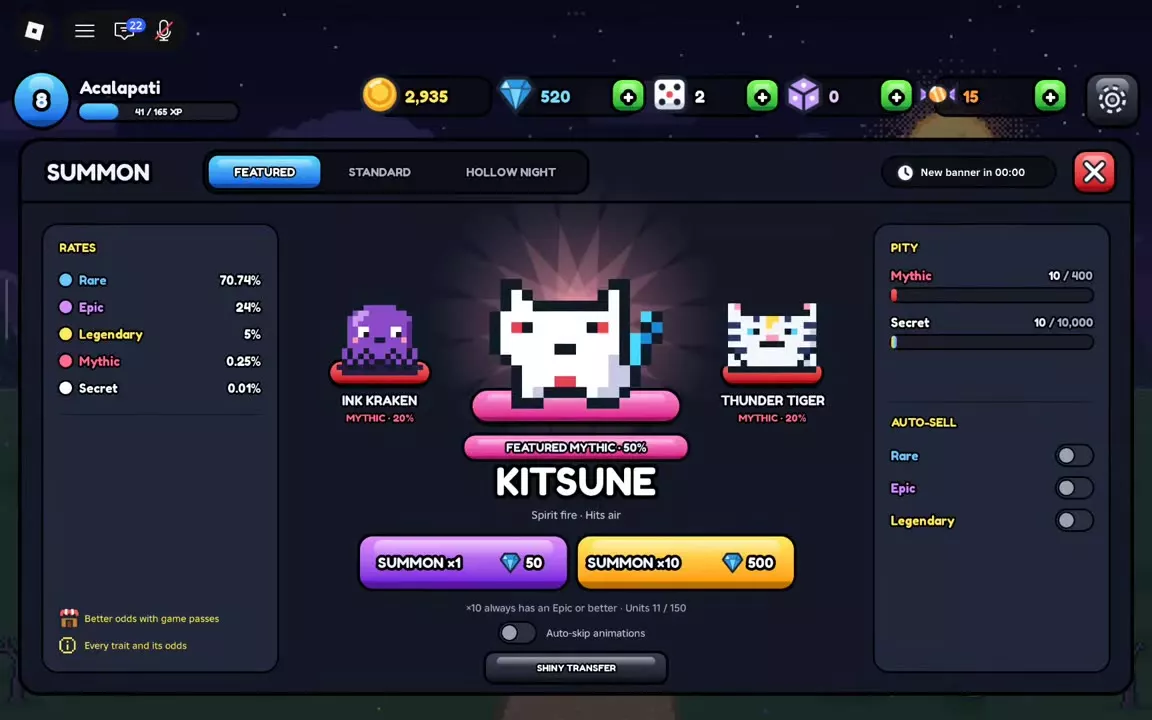
In SUMMON, turn off AUTO-SELL for each rarity you want to keep. In UNITS, use LOCK to protect copies from feeding and the +25 option to buy more storage.
Turn Off Auto-Sell for Copies You Want to Keep
- Open SUMMON and select the banner you plan to use.
- Find AUTO-SELL and turn off the switches for the rarities you want to retain. Rare, Epic and Legendary each have a separate switch.
- Summon with those switches off to keep units of the selected rarities in your collection.
Keep extra units if you want to feed them for unit XP. Also save matching Mythic or Secret duplicates for Ascension. Check the switches on the banner you intend to use before summoning. For banner choices and costs, see the summoning guide.
Find and Protect Your Units
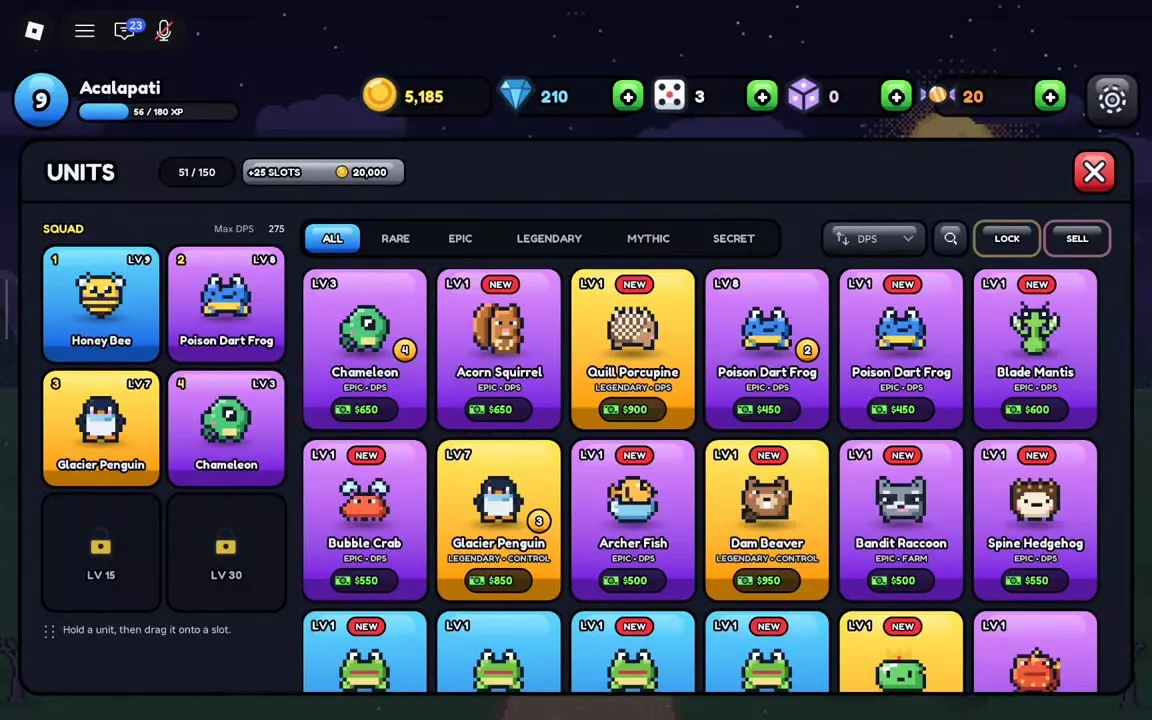
Open UNITS to manage your collection. Use search to find a unit, sort by DPS, or select ALL, RARE, EPIC, LEGENDARY, MYTHIC or SECRET to filter the list. Use LOCK on copies you want to protect from feeding.
Locked units, Shiny units and units currently in your squad do not appear in the feed selection. The separate SELL entry manages unwanted inventory copies. Selling a copy from your collection is different from selling a deployed unit during a match: the unit card's deployment cost is battle cash, while an inventory sale returns Gold.
Buy More Storage Slots
- Open UNITS and find the inventory count at the top.
- Select the +25 SLOTS option and buy the displayed upgrade with Gold.
Each Gold upgrade adds 25 unit slots. One displayed +25 upgrade costs 20,000 Gold. You can buy Gold storage upgrades up to ten times, adding a total of 250 slots.
Storage holds collected copies; it does not increase the number of units you can bring in your squad. See player levels and squad slots for those unlocks.
Choose Between Feeding, Ascension and Shiny Transfer
| Copy | Use |
|---|---|
| Unneeded ordinary unit | Feed for XP |
| Matching Mythic or Secret | Save for Ascension |
| Shiny unit | Transfer to matching copy |
Feed ordinary copies you no longer need when you want to level another unit. Keep matching Mythic or Secret duplicates if you want their Ascension star bonuses. The leveling and Ascension guide covers both growth options.
If your preferred copy of a unit is not Shiny, you can transfer the Shiny effect from another copy of the same unit for free. See Shiny transfer for the menu and conditions.
FAQ
Does HITS AIR mean a unit can be placed on hills?
No. HITS AIR describes which enemies the unit can attack. Hill placement has a separate eligibility rule. If the preview says Hills are for flying units, choose an eligible unit or move onto valid ground beside the hill. See placement rules.
Does leveling a unit unlock more squad slots?
Squad slots depend on account level, not an individual unit's level. Account levels 5, 15 and 30 unlock the fourth, fifth and sixth slots. Unit XP levels individual units, while Tide Pass XP advances the pass. See player progression.
Is a ten-pull cheaper than ten single summons?
At base prices, Featured and Standard cost 50 Gems per single or 500 per ten-pull, so the currency cost is equal. A ten-pull guarantees at least one Epic or higher. VIP reduces both prices by 20%, to 40 Gems per single or 400 per ten-pull. See summoning prices and guarantees.